Blog

  • upcb GameCube Cable

    Usage (short Version)

    Start: Stick is reported to D-pad only instead of both D-pad and left analog
    Select: Stick is reported to left analog only instead of both D-pad and left analog
    Strong+Forward: Smash Brother Basic mode
    Fierce+Roundhouse: Smash Brothers Advance mode
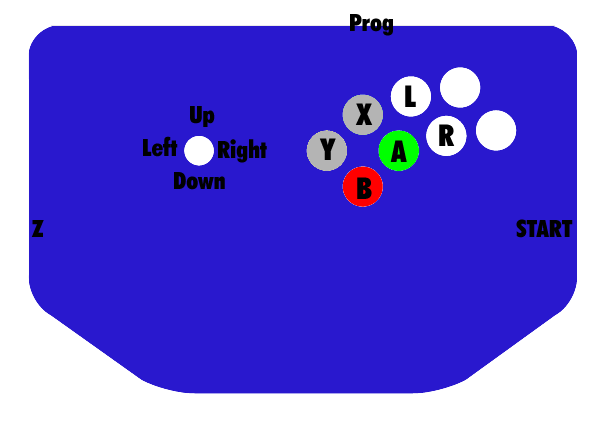
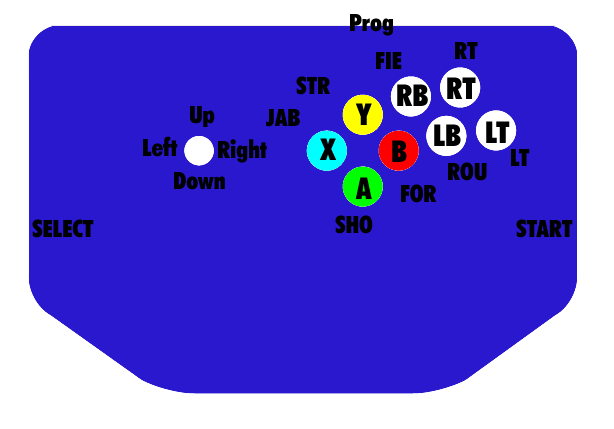
    gamecubelayout

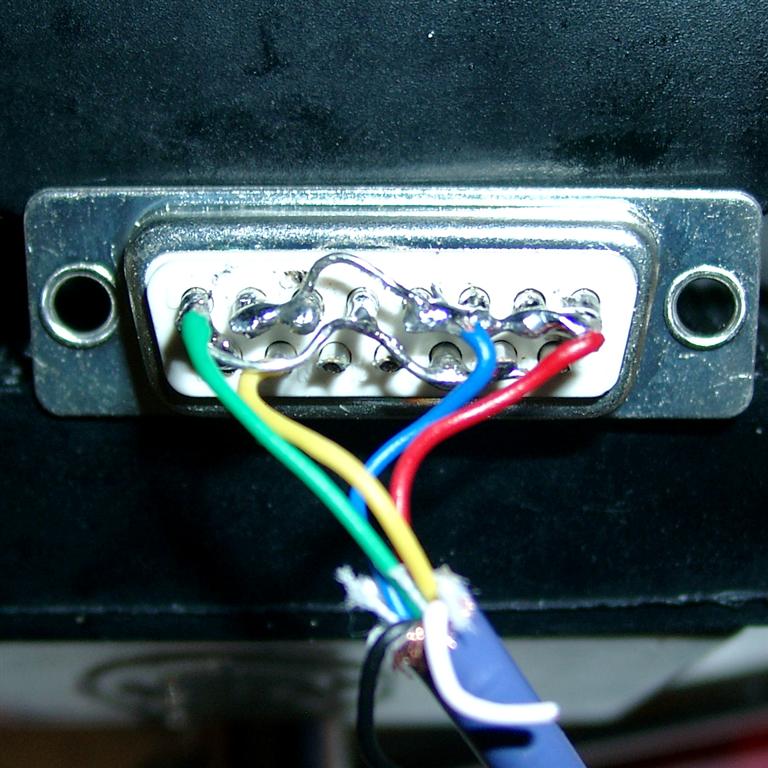
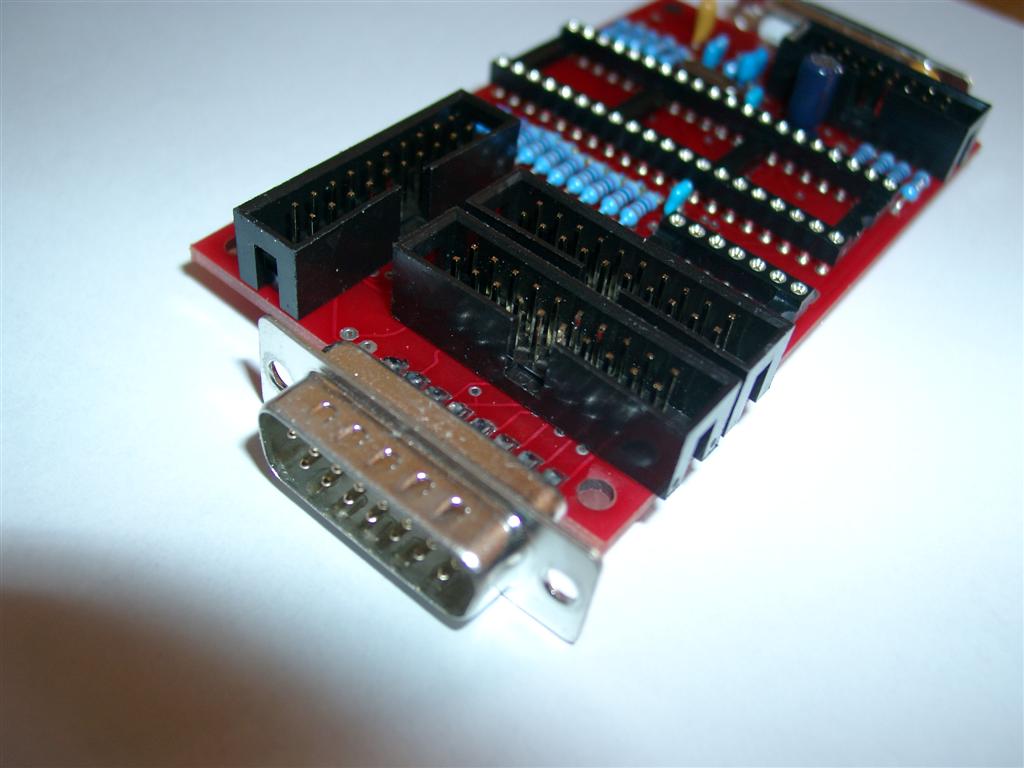
    Pictures of Sub-D 15 pin male:

    gamecube_cable1

    Look into the Gamecube socket
    Look into Gamecube socket


    Pin Description GameCubePort

    1 VCC 5V (green)

    2 Data in (yellow)

    3 GND (blue)

    4 GND (red)

    5 – (white)

    6 3,43 V (black)

    7 gnd (shield)

    Sub D 15 pin

    1 4 (GND) blue, red, shield

    2 Low

    3 Low

    4 Low

    5 High

    6 Low

    7 Low

    8 1 (VCC 5V) green

    ______________________

    9 NC –

    10 High

    11 High

    12 NC –

    13 NC –

    14 2 (Data) yellow

    15 High

    USAGE in DETAIL

    1. Default [automatic if you didn’t select any other mode] Stick gets reported to both right analog and d-pad. Select is Z, Start is start, and the layout is:
    YXL
    BAR
    2. D-pad only [hold Start when plugging in.] Same as default, but the stick is only reported to the d-pad. Right analog always in neutral.
    3. Analog only [hold Select when pluggin in.] Same as default, but the stick is only reported to the right analog stick. D-pad is always in neutral.
    4. Smash Bros. Basic [hold Strong and Forward when plugging in.] 2,6 (A,X)Short is shield, Jab is A, Strong is B. Double tap a direction to dash. A+B+Direction does a smash attack using the C stick. Select is a dpad down taunt.
    5. Smash Bros. Advanced [hold Fierce and Roundhouse when plugging in.] Buttons same as Smash Bros. Basic, but include forward as ‚jump‘ (just the Y button), fierce as ‚run‘, and roundhouse as ‚lock‘. Shield button will do a half-pull on the trigger with no click unless the ‚run‘ button is pressed as well; then it will do a full pull with click so you can choose which type of shield you need for hit recovery, L-cancelling, whatever. ‚run‘ button also makes the analog stick report as all of the way in the direction you want, instead of just a little bit, so you can choose to walk or run, tild or smash.’lock‘ button is for complex C-stick manuevers. It locks the analog stick where its at, and your stick will control the C-stick until you release the lock button. So, to do Peach’s floating b-air, jump and hold up on your stick, hold the lock button, and move the stick to the left or right.
  • uPCB Soldering

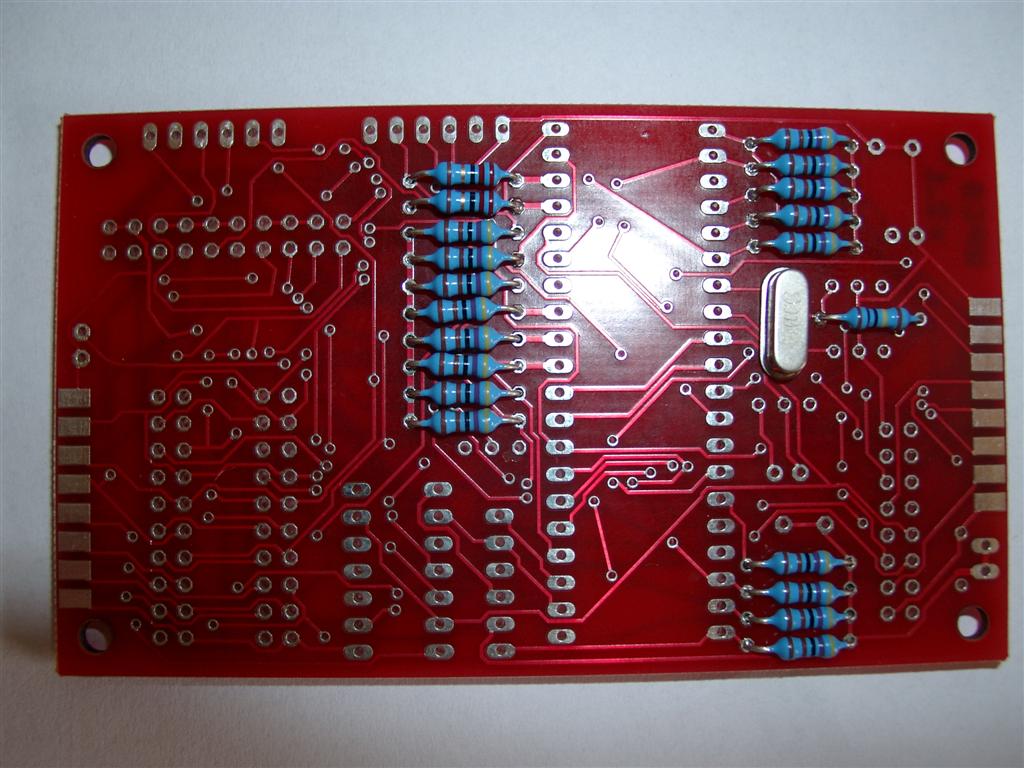
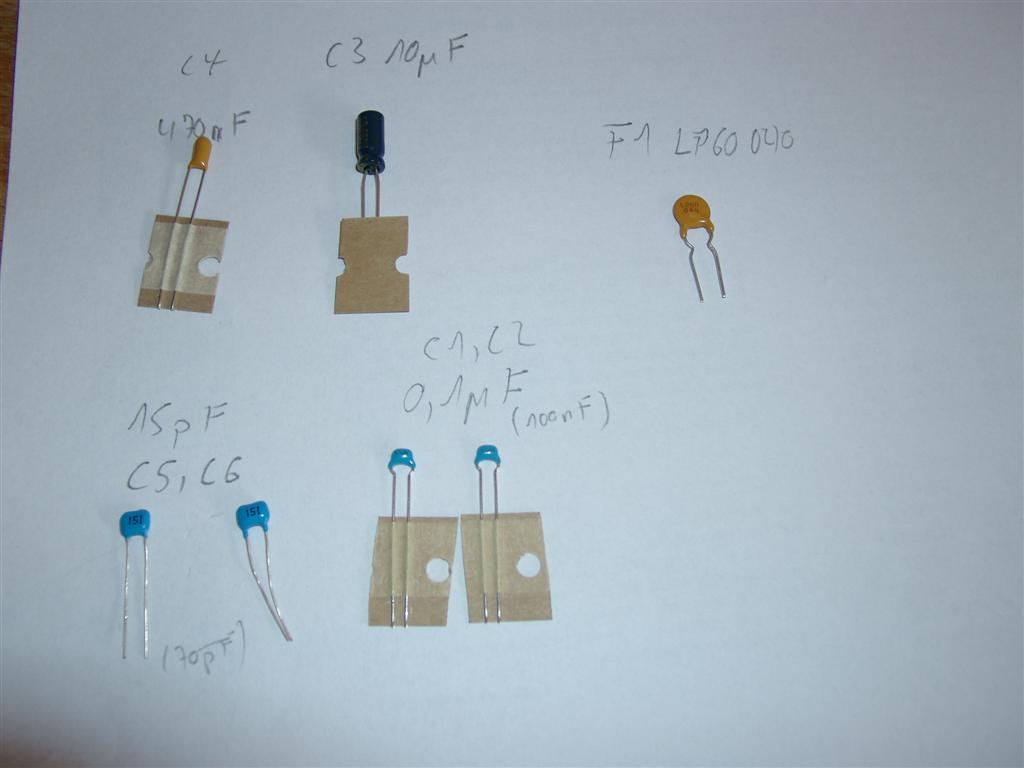
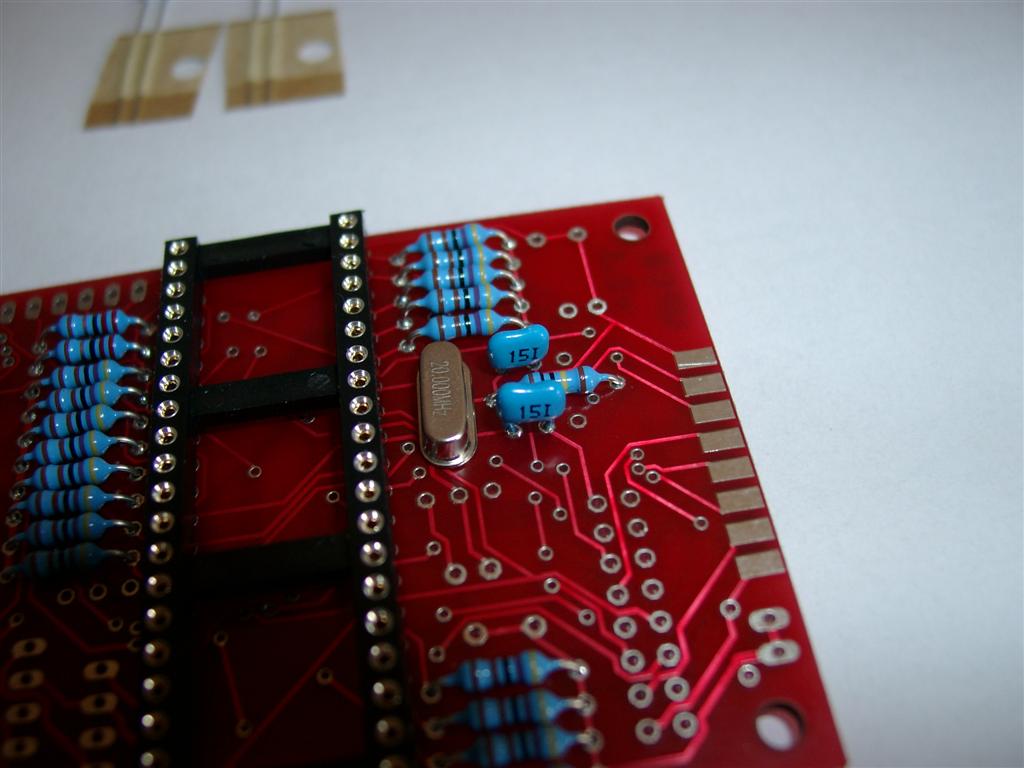
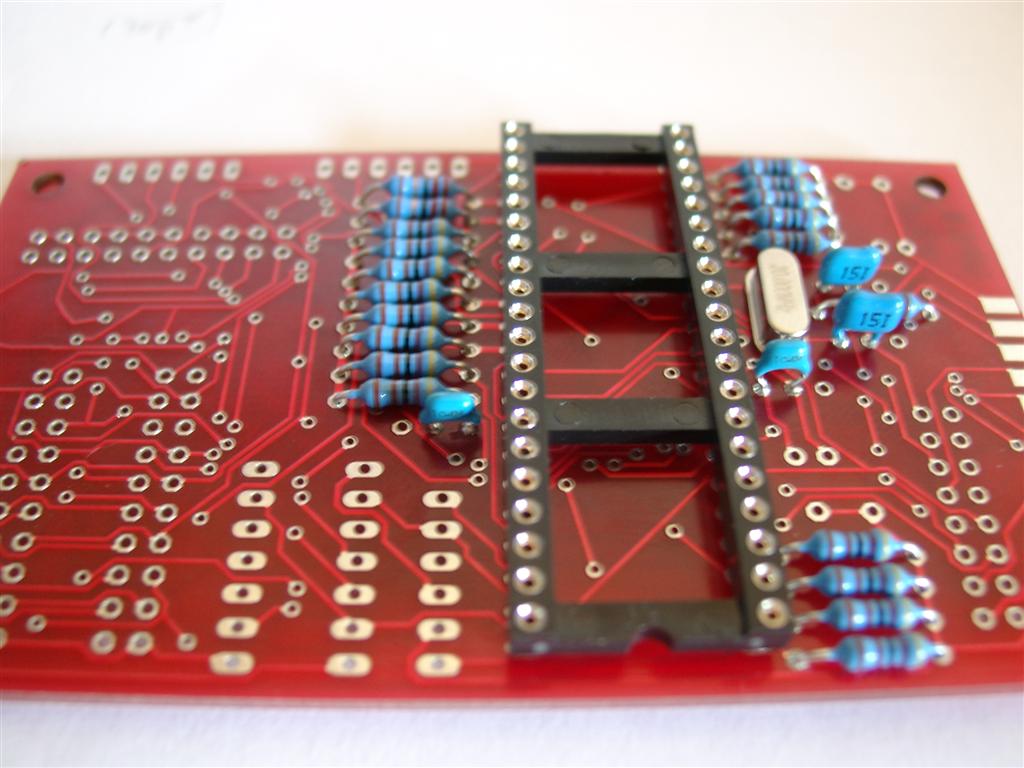
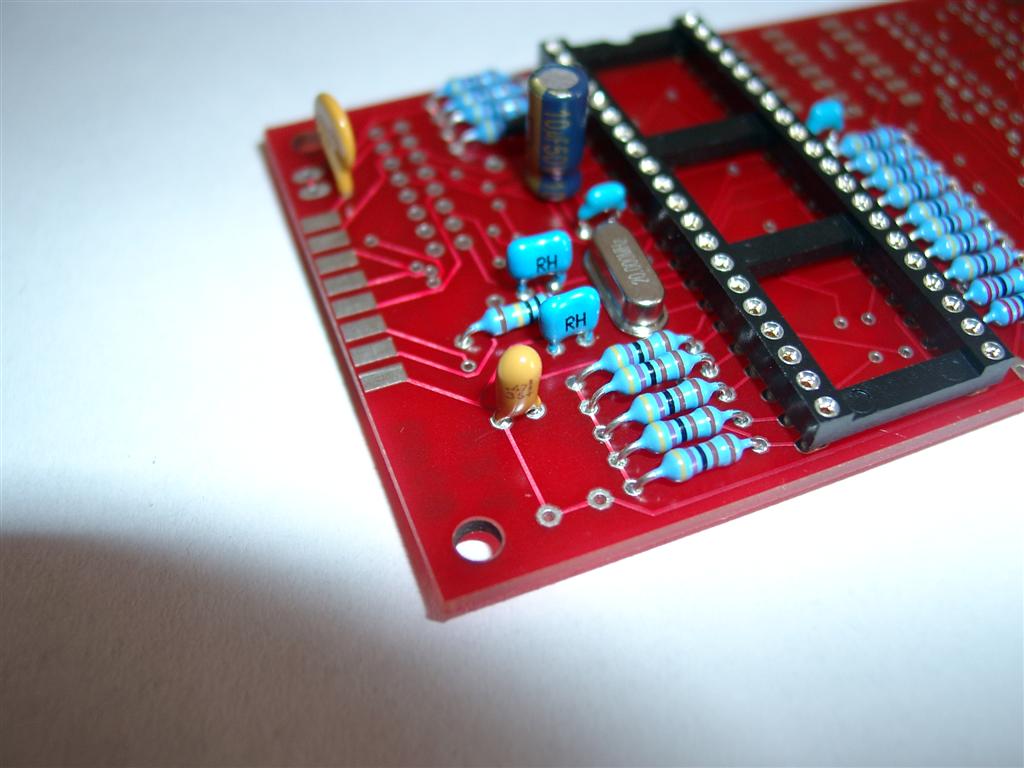
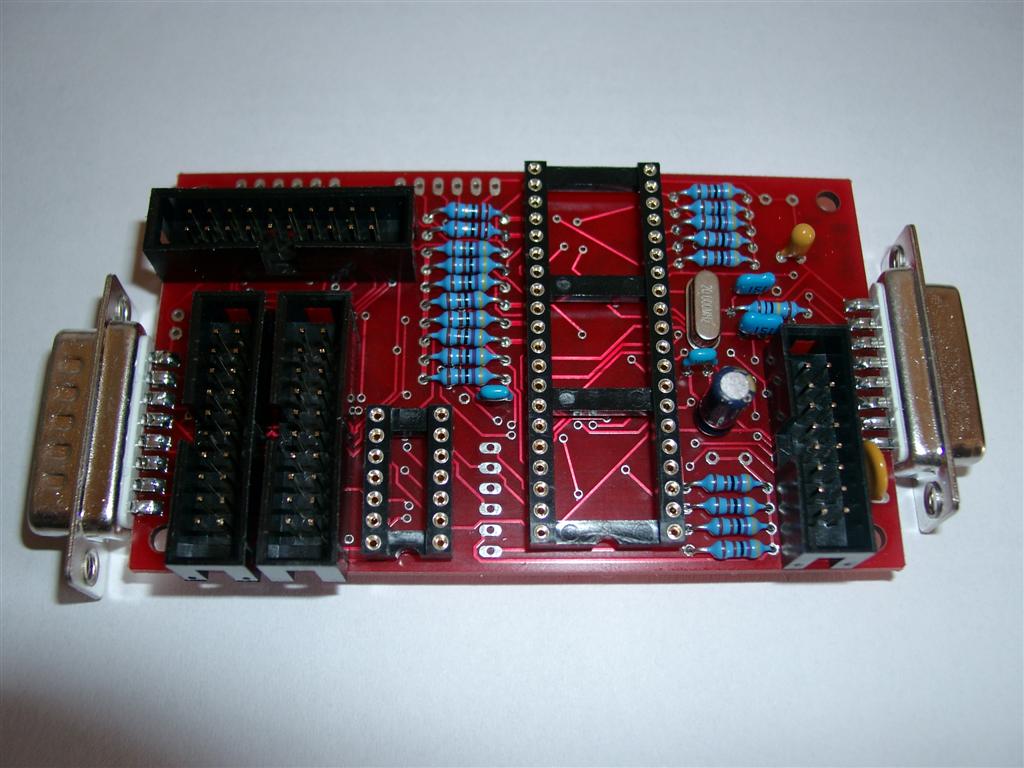
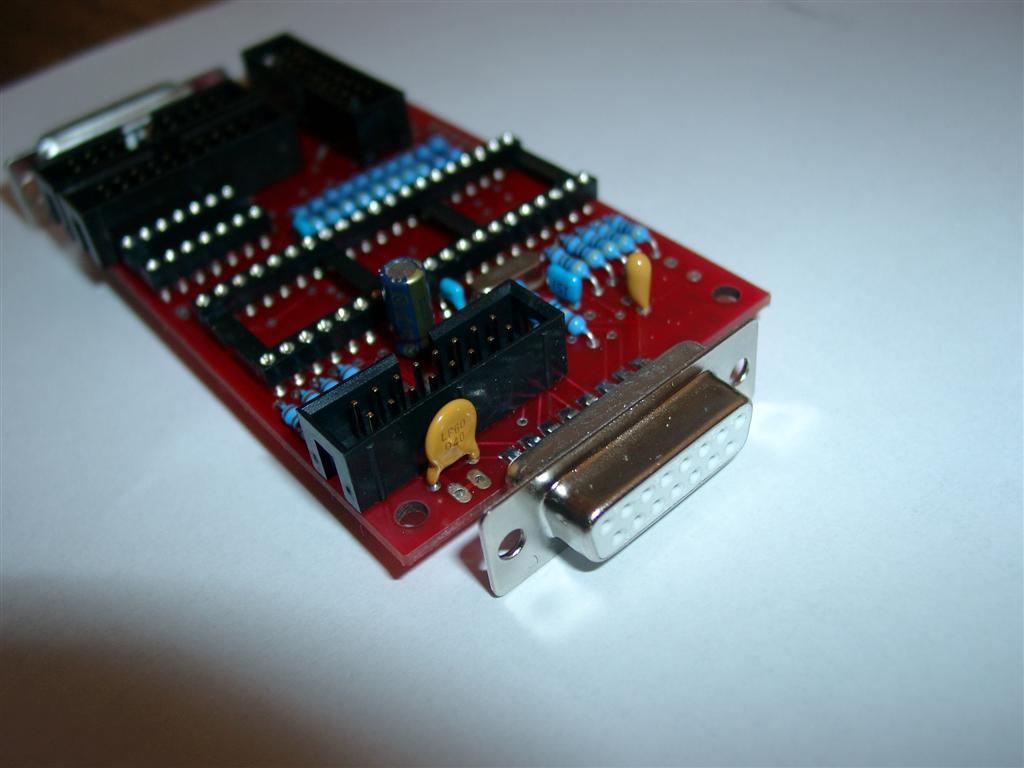
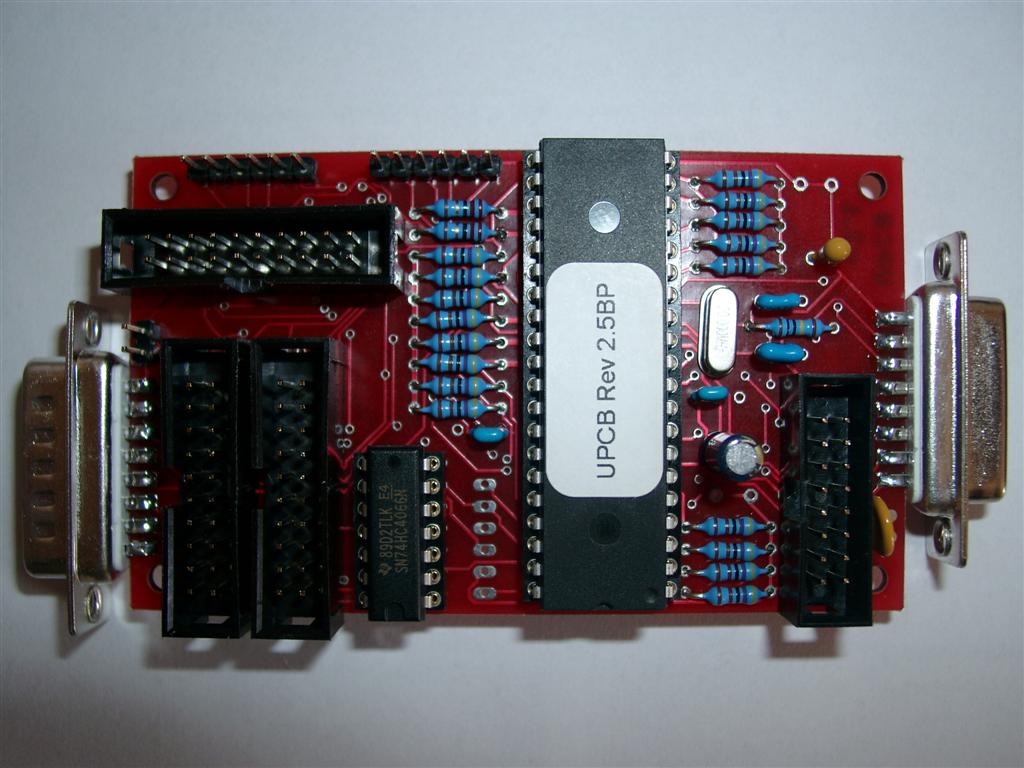
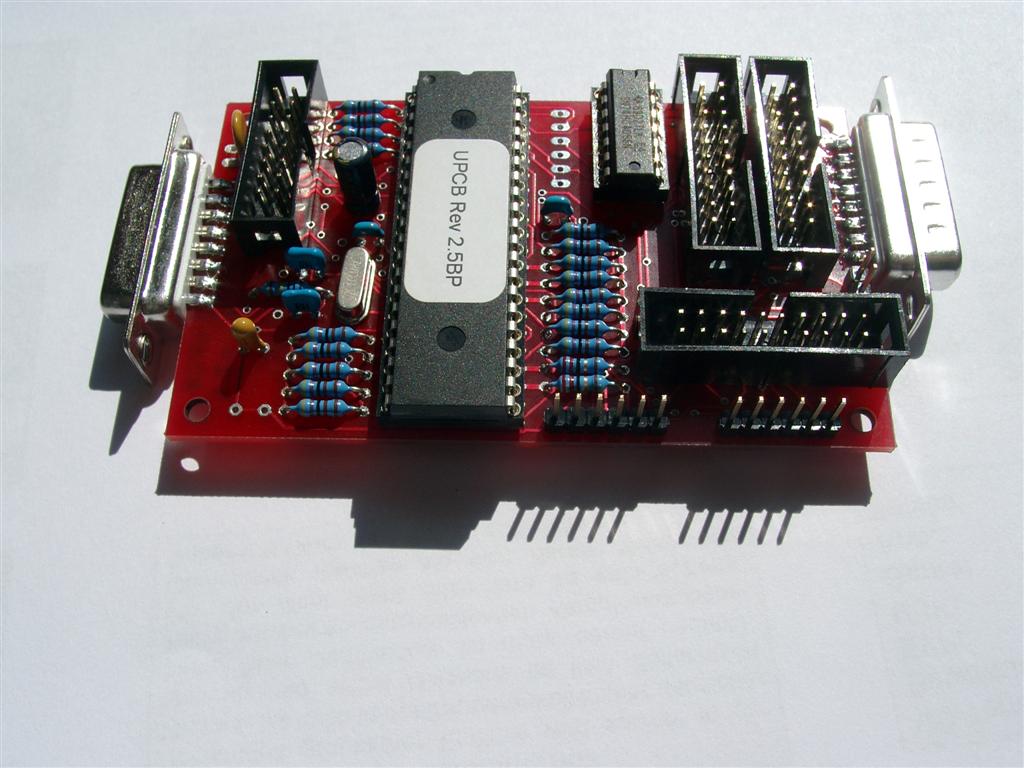
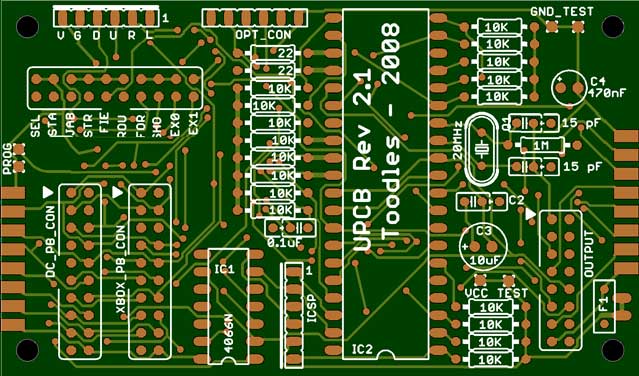
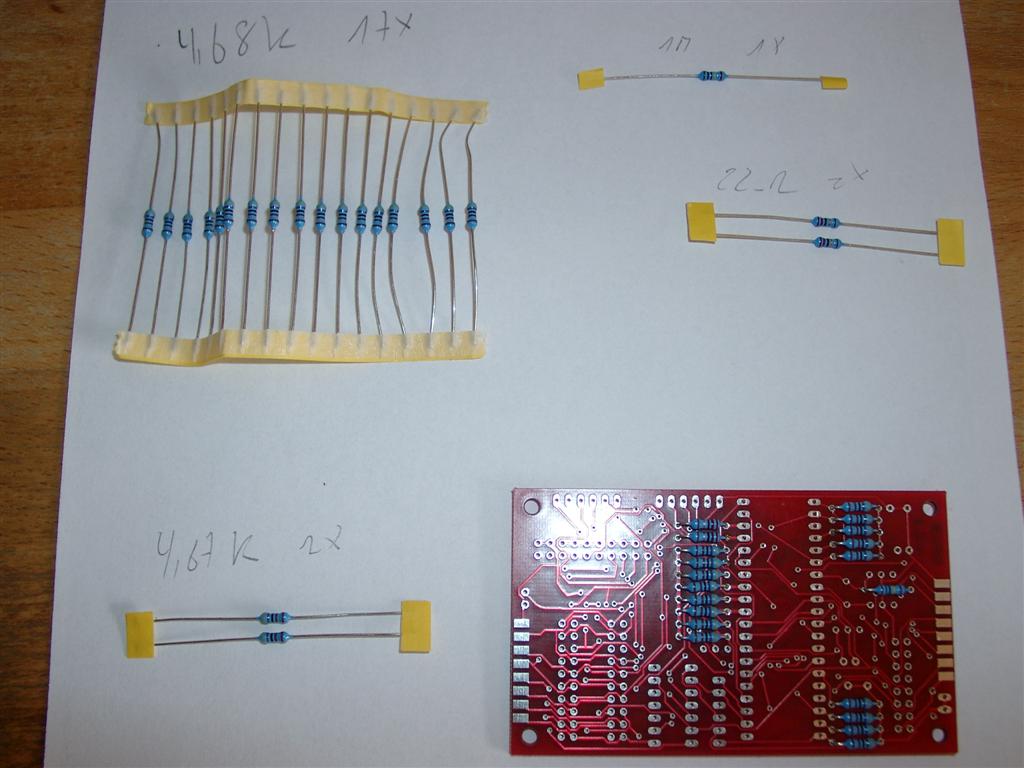
    here are some pictures where you can see how to assemble a UPCB Rev 2.1

    labelledupcb21qx9

    First we have to make the pcb working. Two 4,67k on the botton are not neccasary

    upcb_soldering (1)

    upcb_soldering (2)

    upcb_soldering (3)

    upcb_soldering (4)

    upcb_soldering (5)

    upcb_soldering (6)

    upcb_soldering (7)

    upcb_soldering (8)

    upcb_soldering (9)

    upcb_soldering (10)

    upcb_soldering (11)

  • Universal PCB XBox360 Padhack (Piggyback)

    Hi Folks,

    for playing x360 with the universalpcb you will need to hack a x360 Pad.

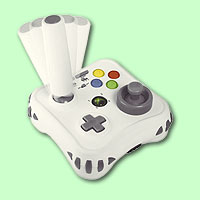
    We use a MadCatz Arcade Gamestick Item#4758.

    picture of arcade gamestick
    picture of arcade gamestick

    It will be easy to hack, because you will need no inverting the R-Trigger and L-Trigger Buttons, it’s cheap, you can solder directly to the buttons and it’s common Ground.

    We have some in stock: here

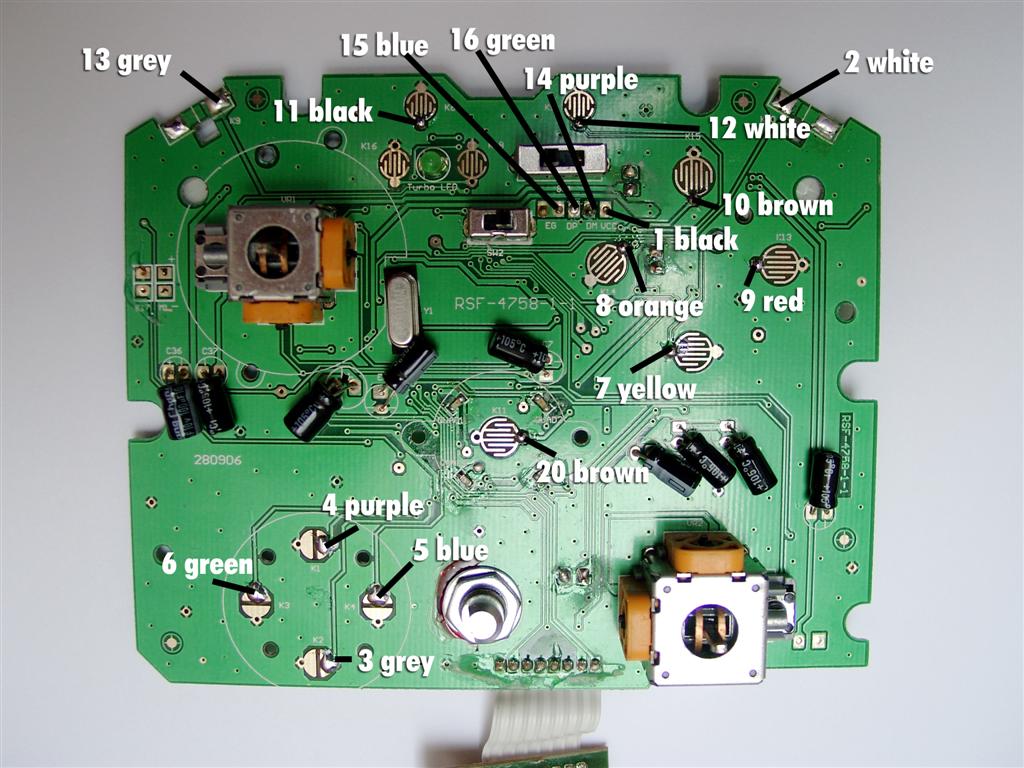
    You have to dissassemble the complete pad including the R-Trigger and L-Trigger Potis.

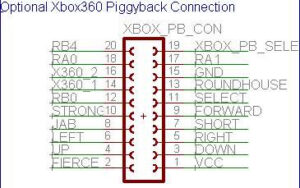
    Connector on UPCB
    Connector on UPCB

    Pin Color
    1 black VCC Red usb cable
    2 white 7 Hard Punch FIE=FIERCE RButton
    3 grey DOWN DOWN
    4 purple UP UP
    5 blue RIGHT RIGHT
    6 green LEFT LEFT
    7 yellow 1 SHO=SHORT Light Kick A (green)
    8 orange 5 JAB Light Punch X (blue)
    9 red 2 FOR=FORWARD Medium Kick B (red)
    10 braun 6 STR=STRONG Medium Punch Y (yellow)
    11 black L-PB SEL=SELECT Back
    12 white R-PB RB0 Start Start
    13 grey 3 ROU=ROUNDHOUSE Strong Kick LButton
    14 purple
    XBOX360_1 D- (white)
    White usb cable
    15 blue Gnd Black usb cable
    16 green
    XBOX360_2 D+ (green)
    Green usb cable
    17 yellow 4 RA1 LT „hardest“ Kick LTrigger
    18 orange 8 RA0 LB „hardest“ Punch RTrigger
    19 red XBOX PB Select (high when in use)
    20 braun RB4 Guide (press LeftPinballB+RightPinballB) Guide
    Frontside of the MadCatz Pad
    Frontside of the MadCatz Pad
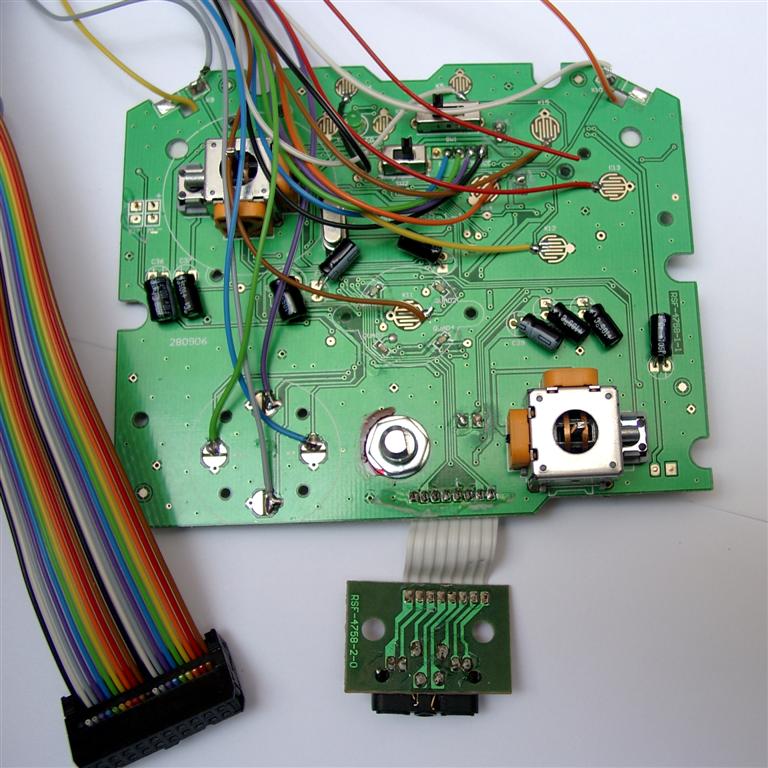
    frontside including Wires
    frontside including Wires
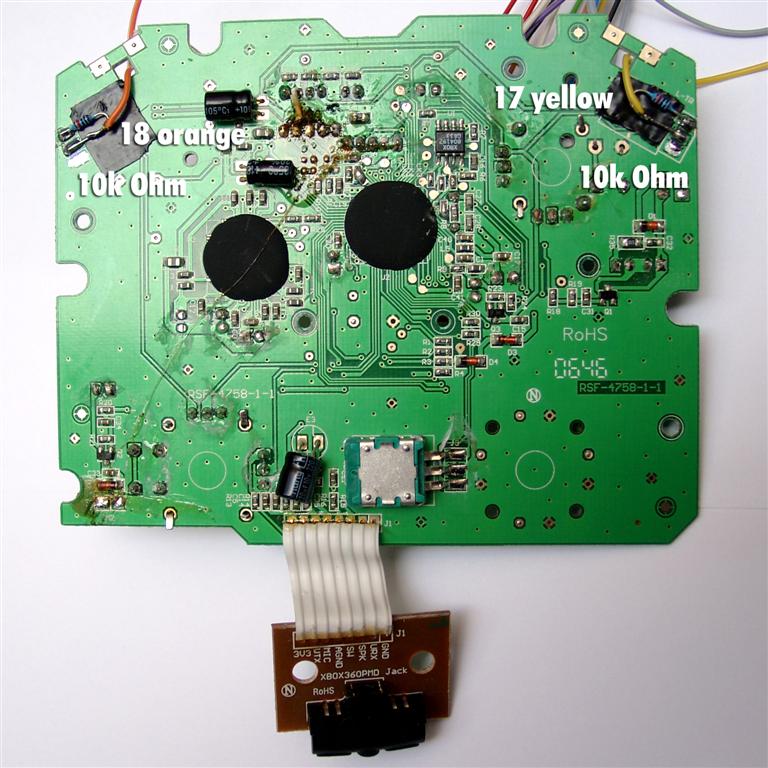
    Backsite including Resistors 10k
    Backsite including Resistors 10k

    ButtonLayout

  • RGB-Led for Sanwa JLF-TP-8YT Stick

    Hi there,

    for having fun with the great Sanwa Sticks I want to use a transparent Balltop and a Stick with a hole.

    Thanks to luigi for the necessary hardware.

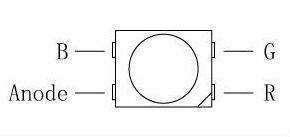
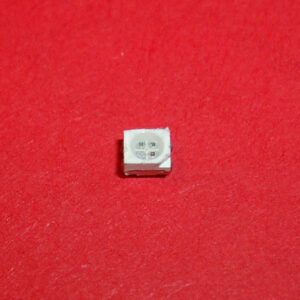
    If you want to make it lid RGB you are in need of some SMD Led´s. First I tried SMD 605 (small Leds) but now I will try the bigger one called PLCC-2 DMX RGB-Leds.

    pinout plcc2-rgb
    pinout plcc2-rgb

    IF=20mA, Red=2,0V; green=3,5V; blue=3,6V

    -> Rred=150Ohm; Rgreen=125Ohm; Rblue=120Ohm @ 5V

    You need 4 wires and shrinking tube.

    plcc2-dmx
    plcc2-dmx

    (in real)

    heatshrink tube
    heatshrink tube

    (shrinking tube 2 sizes)

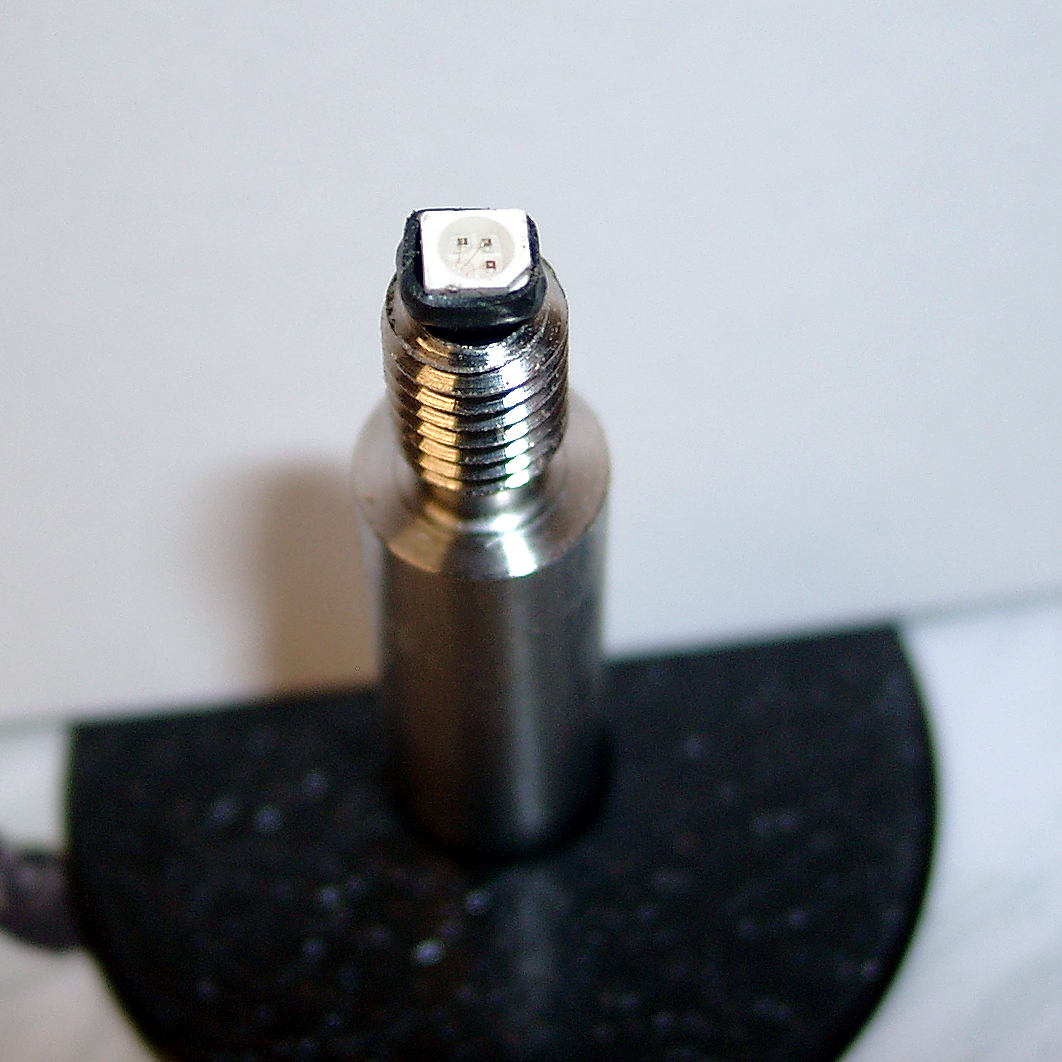
    final position of rgb-led
    final position of rgb-led
  • electronic attachment

    The complete electronic was attached to the PVC Cover.

    Now I have to attach it to the Panel itself.

    too be continued…

  • Opening the LCD

    To get an authentik look I am using original Pinball Stuff for the PINbrawl like PinballLegs, Lockbar.

    The first Problem was the wide of the Pinball. I want to use a WideBody Lockbar. To see if the LCD fits, we must open it to have look of the native Wide of the LCD.

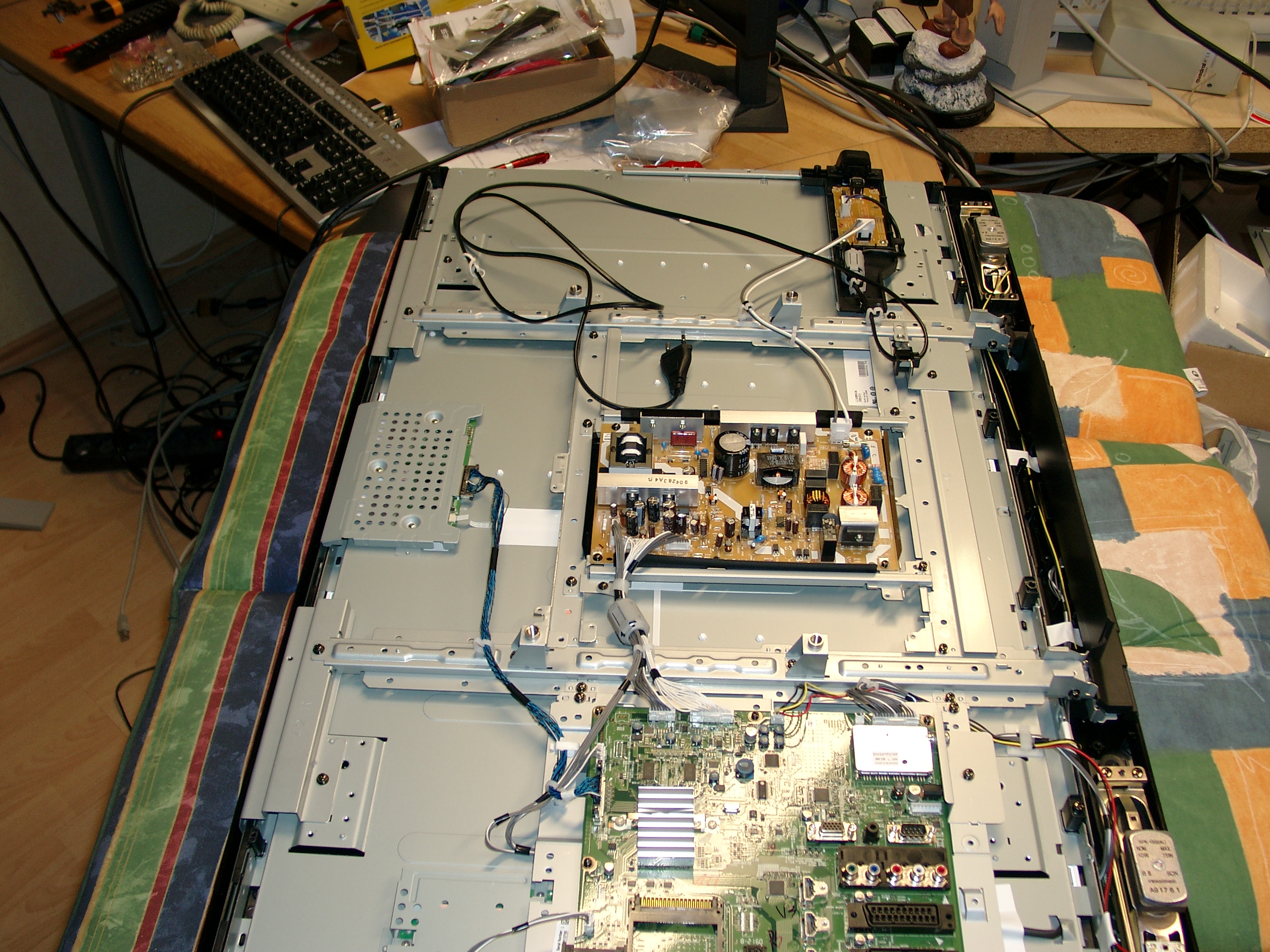
    Toshiba Backsite Open
    Toshiba Backsite Open

    You can See the PC of the LCD at the bottom of the picture and in the middle the powersupply

    PVC Removing
    PVC Removing

    First I have to remove two little pcb’s (Status Leds, IR-Receiver) and the speakers.

    After this I removed the complete PVC Cover. The native LCD wide is: 57,5cm.

    A widebody Pinball is 62,5cm

    I want to use 19mm MDF for the Cabinet so I am lucky it will work.

  • A new Pinball Star is born

    Here you can find my newest Project. A Virtual Pinball Cabinet.

    It will use 2 Screens one 42Zoll TrueHD LCD Panel for the playfield of the Pinball. And a second LCD for the Backboard.

    First I tried the LCD together with a PC to see how it works.

    We make the use of a frontend called HyperPin

    Look here you can see the first try